Summary
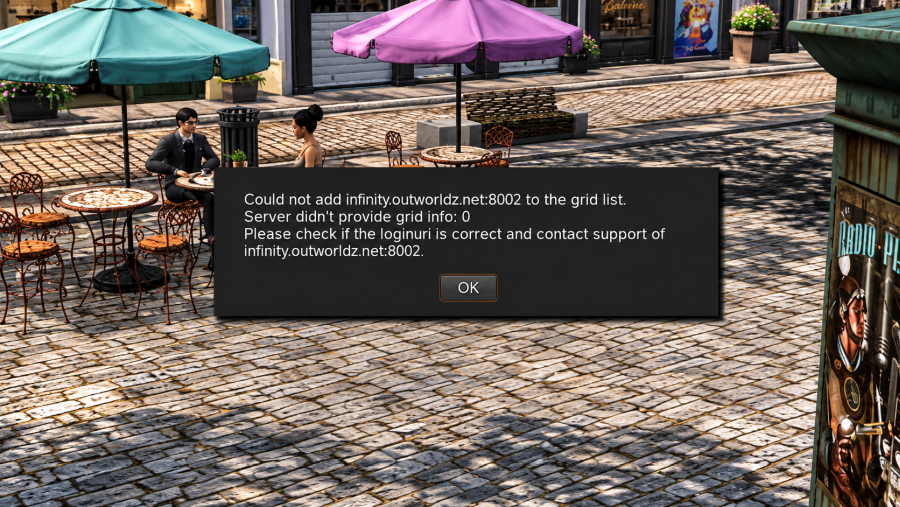
The popup read: Could not add infinity.outworldz.net:8002 to the grid list. Server didn’t provide grid info: 0. The “0” means the Infinity grid gave no answer at all, because that grid is offline.
Visitors to Mystaraliza were never affected. The cause lived only in Stella Brightwell’s Firestorm settings on this PC.
Why it happened
Firestorm remembers places you have typed into the location bar or visited, including hypergrid trips to other grids. At every login and teleport, it checks that each of those grids is still online.
- You log in or teleport.
- Firestorm reads its history files and checks about ten remembered grids (OSgrid, Friends Grid, Trianon, Infinity and others).
- The Infinity grid has shut down, so its check gets no reply.
- About 2½ minutes later, Firestorm gives up and shows the popup.
This history is separate from World → Teleport History and from landmarks, which is why Infinity never showed up in those places. The Firestorm log confirmed it: the grid checks ran before inventory and landmarks had even loaded.
What to do if it happens again
If a similar popup names any grid other than your own, clear Firestorm’s history files. It takes about five minutes.
- Close Firestorm completely.
- Press Windows key + R to open the Run box.
- Type
%APPDATA%\Firestorm_x64and press Enter. - Double-click the folder stella_brightwell.mystaraliza_grid. If you log in as another avatar, use that avatar’s folder instead.
- Copy these files to your desktop as a backup, if they are there:
url_history.xmltyped_locations.txtteleport_history.txt
- Delete those same files from the avatar folder.
- Start Firestorm, log in and wait about 3 minutes.
- No popup means it is fixed, so delete the desktop backups.
Firestorm creates fresh, empty history files on its own. The only thing lost is the drop-down list of past places in the location bar.
If the address doesn’t open with the Run box, paste the full path instead: C:\Users\User\AppData\Roaming\Firestorm_x64\stella_brightwell.mystaraliza_grid
If clearing the files doesn’t help
The Firestorm log shows what triggered the popup.
- Close Firestorm, then open
%APPDATA%\Firestorm_x64\logswith Windows key + R. - Delete everything in that folder. These are old logs and crash dumps, and deleting them is safe.
- Log in and wait until the popup appears, then close Firestorm.
- Open the new Firestorm.log in Notepad and press Ctrl+F.
- Search for the grid name from the popup. The lines just above the first match show what Firestorm was doing when it tried that address.
Popups that name your own grid (mystaraliza.duckdns.org) are a different problem. Check that the grid and its server are running.


